UtilityPad
Your trackpad's edges become controls.
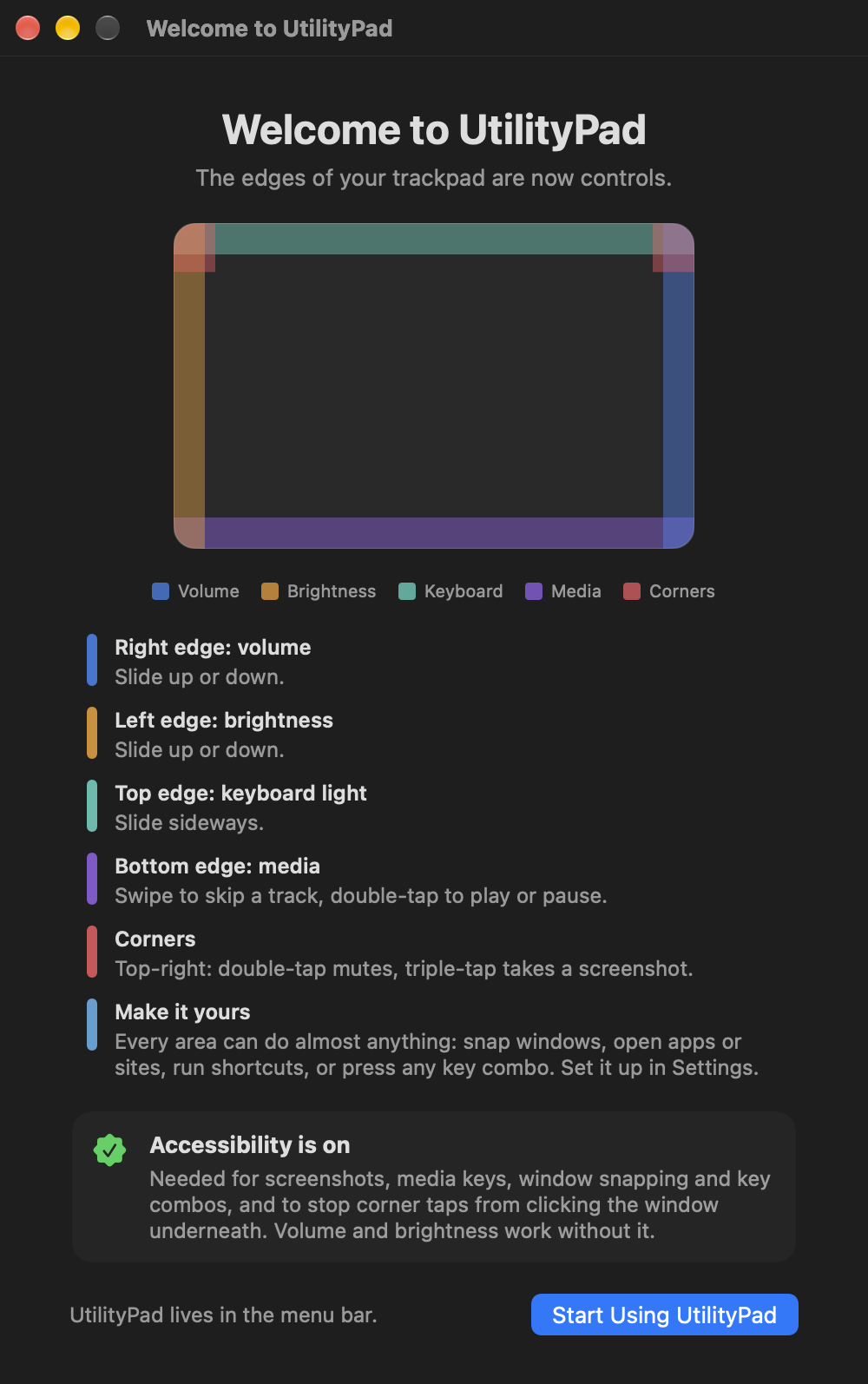
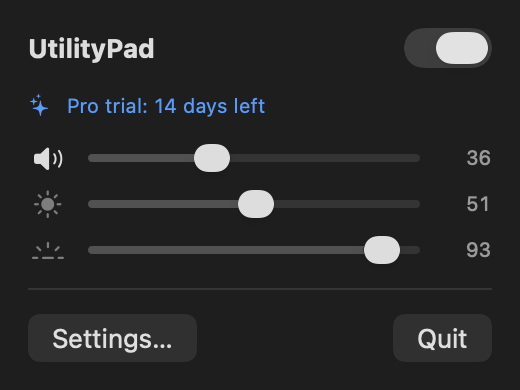
Slide along an edge to change volume or brightness. Tap a corner to mute or take a screenshot. Flick in from an edge to snap a window. UtilityPad lives in your menu bar and stays out of the way.
What it does
Slide the edges
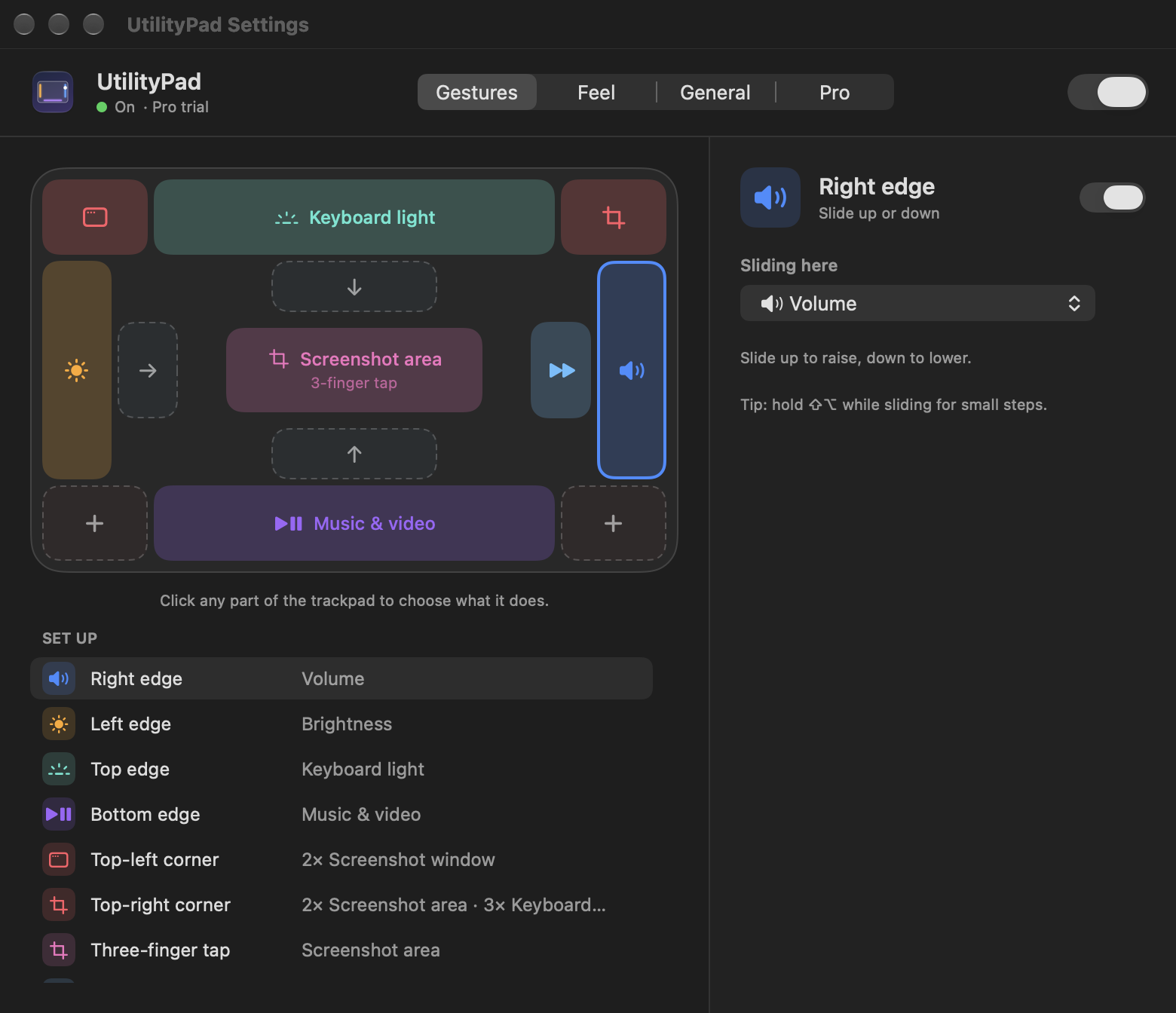
Right edge for volume, left for brightness, top for the keyboard light. Hold ⇧⌥ for fine steps. With Pro, an edge can also switch tabs, scrub video, zoom, change desktops or undo.
Tap the corners
Double-tap or triple-tap any corner. Out of the box, the top-right mutes and takes a screenshot of an area.
Swipe the bottom
Swipe along the bottom edge to skip tracks and double-tap it to play or pause. Works with Music, Spotify and YouTube.
Flick in from an edge (Pro)
A quick flick toward the middle can snap a window left or right, open Mission Control or show the desktop.
Three-finger tap
Give a light three-finger tap any action you like. Slow moves and normal clicks stay normal pointing.
Make it yours (Pro)
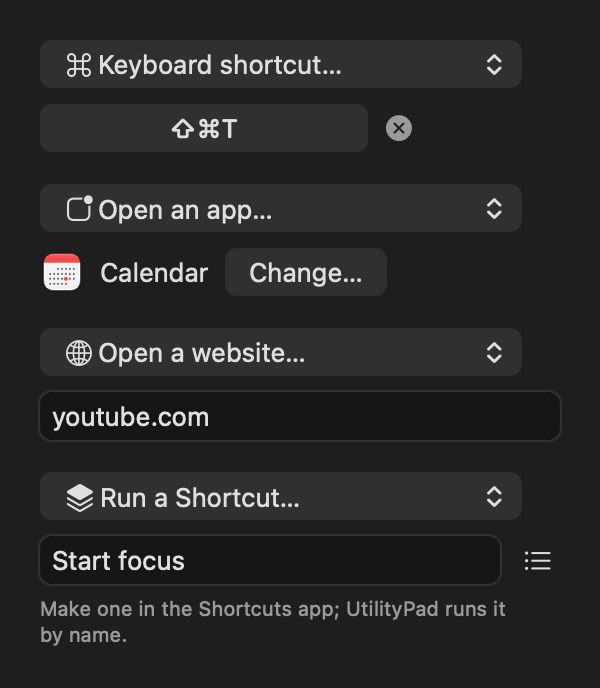
Give any edge, corner or tap your own key combo, open an app or website, or run a Shortcut.
A closer look
Price
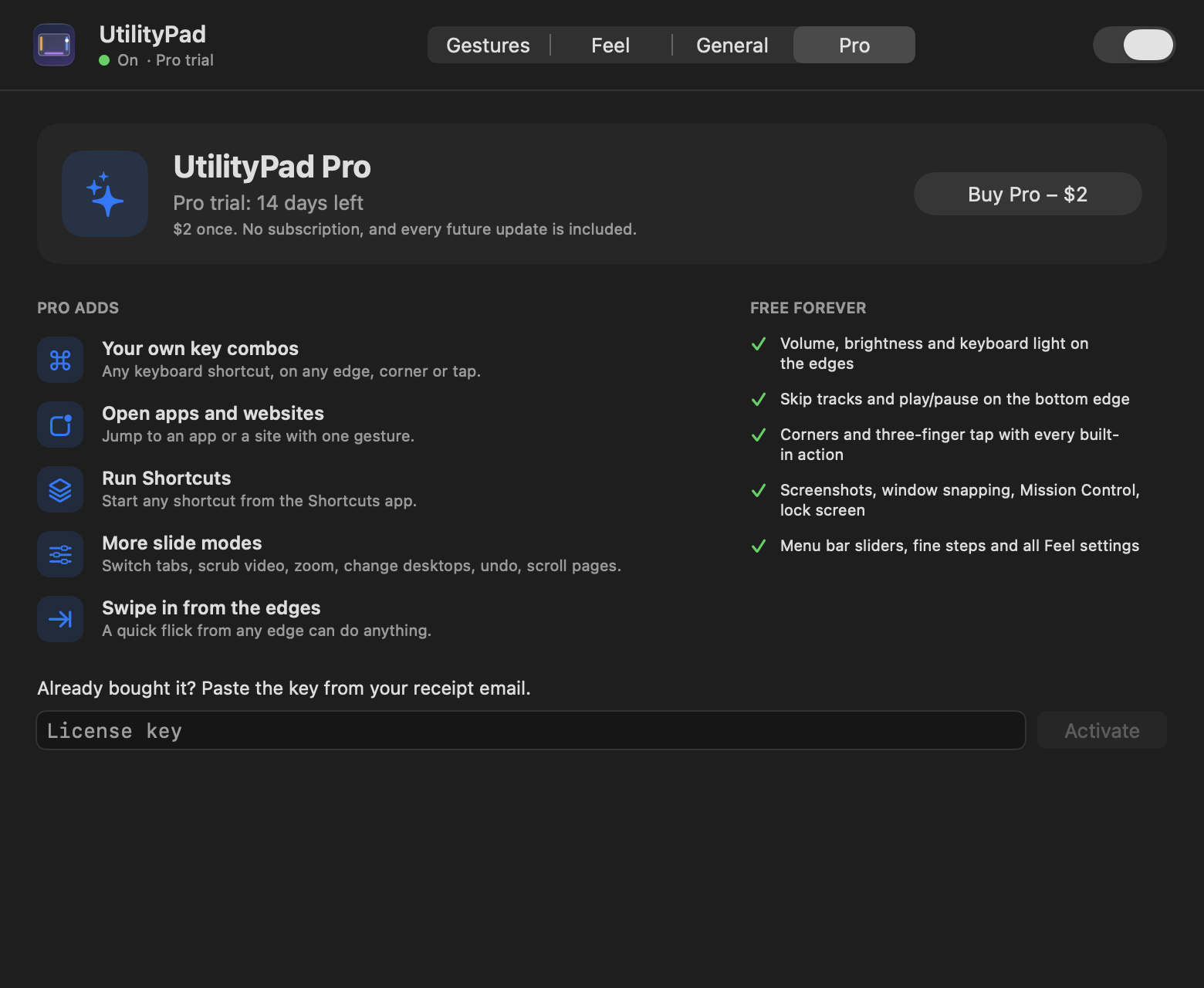
Free $0
- Volume, brightness and keyboard light on the edges
- Skip tracks and play/pause on the bottom edge
- Corners and three-finger tap with every built-in action
- Screenshots, window snapping, Mission Control, lock screen
- Menu bar sliders, fine steps and all feel settings
Pro $2 once
- Everything in Free
- Your own key combos on any edge, corner or tap
- Open any app or website with a gesture
- Run Shortcuts from the Shortcuts app
- More slide modes: tabs, video, zoom, desktops, undo, scrolling
- Swipe in from the edges
Every download includes a 14-day Pro trial. No account, no subscription. Until checkout opens, the trial unlocks everything.
Install
- Download UtilityPad and open the file. Drag UtilityPad into Applications.
- Double-click UtilityPad. macOS says it can't check the app because it isn't from the App Store. Click Done.
- Open System Settings › Privacy & Security, scroll down and click Open Anyway next to UtilityPad. You only do this once.
- Allow Accessibility when UtilityPad asks. Screenshots, media keys and window snapping need it. Volume and brightness work without it.
Questions
Does it slow my Mac down?
No. UtilityPad uses about half a percent of the CPU while you use the trackpad, and close to nothing otherwise.
Will it get in the way of normal pointing?
Edges only react to slides along them and corners only to quick taps. A slow move from an edge is normal pointing, and you can pause UtilityPad from the menu bar at any time.
Is my data sent anywhere?
No. UtilityPad works completely offline. It doesn't collect or send anything.
Why is it not on the Mac App Store?
UtilityPad reads the trackpad's raw touches, which apps on the App Store aren't allowed to do. That's also why macOS asks you to approve it once.
What will it cost?
UtilityPad is free. UtilityPad Pro is $2 once, with no subscription, and updates are included. Every download starts with a 14-day Pro trial, and after it ends the free features keep working.
How do I get my Pro key onto the Mac?
After you buy, the key arrives by email. Open UtilityPad Settings, go to Pro, paste the key and click Activate. Moving to a new Mac? Remove it from the old one first.