The app
Set it up by clicking
the trackpad itself.
No lists of settings to read through. Settings shows a map of your trackpad: click a part and choose what it does.
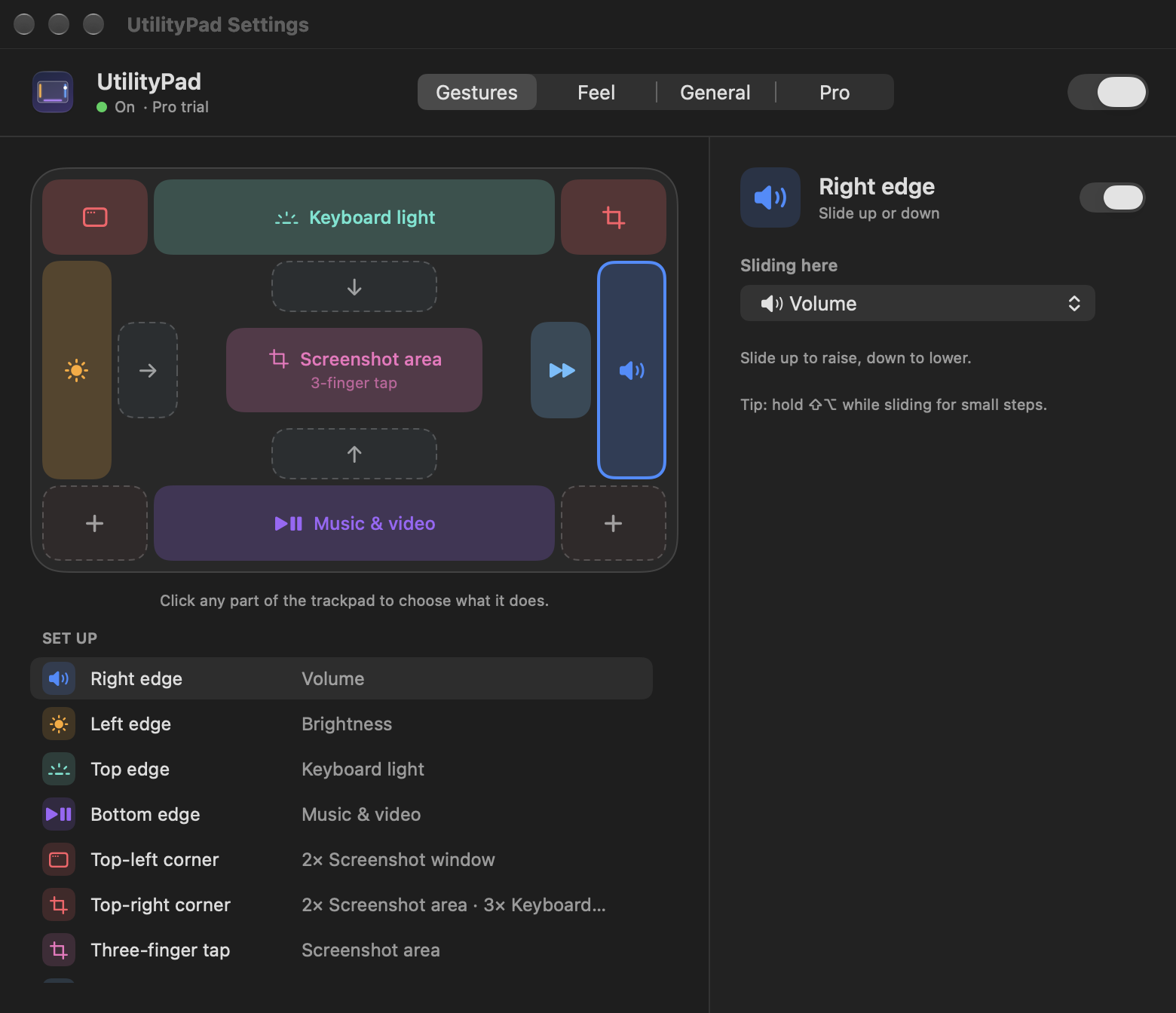
UtilityPad turns the edges and corners of your Mac's trackpad into controls. Slide for volume and brightness, tap a corner for a screenshot, flick in to snap a window. The middle stays a normal trackpad.
Free forever · Pro $2 once · 7-day Pro trial included · macOS 13 or later · 2.2 MBWorks with a mouse or a finger. A quick flick from an edge toward the middle is a swipe-in. Everything between the tiles stays normal pointing; on a touchscreen, tap with three fingers.
How it works
Your trackpad already knows where every finger is. UtilityPad watches only the thin strips along its edges and its corners, so pointing, clicking and scrolling in the middle work exactly as before.
Run a finger up the right edge and the volume rises. The pointer stays still while you slide, and a soft tick tells you each step.
Double-tap or triple-tap a corner. Up to eight actions live in the corners, and none of them clicks the window underneath.
A quick flick from an edge toward the middle snaps a window, opens Mission Control or shows the desktop. Slow moves stay normal pointing.
Features
It works the moment you open it. Then click any part of the trackpad map in Settings and make it do something else.
Right edge for volume, left edge for brightness. Hold ⇧⌥ while sliding for fine quarter steps, just like the keys.
Slide along the top edge to turn the keyboard backlight up or down. Double-tap the top-left corner to switch it on or off.
Swipe along the bottom edge to skip a track, and double-tap it to play or pause. It works with Music, Spotify, YouTube and anything that listens to the media keys.
Each corner takes a double-tap and a triple-tap. Out of the box, the top-right mutes and grabs an area screenshot. Save screenshots, or copy them straight to the clipboard.
Four new gestures: a quick flick in from the left, right, top or bottom. Snap the window to a half, maximise it, open Mission Control or show the desktop.
A light tap with three fingers anywhere can run any action: screenshot, mute the microphone, lock the screen, switch to dark mode.
Click Record, press any keys, done. Reopen a closed tab, start a voice note, trigger your launcher: any shortcut from any app, on any edge, corner or tap.
Open your calendar from a corner, a website from a swipe, or run anything you built in Apple's Shortcuts app, chosen from a list by name.
Turn any edge into a dial that steps through things: tabs, seconds of video, zoom levels, desktops, undo history or pages.
The trackpad ticks gently as levels change, a clean level bar appears next to your finger, and the pointer holds still while you slide so nothing moves under you.
Slow moves, diagonal moves and anything in the middle are left alone.
Corner taps never press the button or link under the pointer.
One switch in the menu bar turns every gesture off and back on.
Prefer to be safe? Make the edges work only while you hold fn or ⌥.
Any edge can do any job. Put volume on the left in two clicks.
Use the full height of the side edges, or only the lower part.
Volume, brightness and keyboard light sliders, one click away.
A gesture can mute your mic for calls, and shows you it did.
Lock the screen, sleep the display or flip dark mode from a corner.
A middle click for opening links in new tabs, from any gesture.
Starts quietly with your Mac and lives in the menu bar, not the Dock.
Settings follow your Mac's appearance, or pick one.
Works with the built-in trackpad and Apple's external ones.
About 2 MB. Nothing is collected or sent. No account needed.
Tried too much? Go back to the starting setup any time.
The app
No lists of settings to read through. Settings shows a map of your trackpad: click a part and choose what it does.
Pricing
Everything that comes built in is free, forever. Pro adds your own actions. One payment, no subscription, and every update is included.
Includes a 7-day trial of every Pro feature.
Your key arrives by email. Paste it in UtilityPad › Settings › Pro.
| What you can do | Free | Pro |
|---|---|---|
| Edges | ||
| Volume, brightness, keyboard light | ✓ | ✓ |
| Fine steps with ⇧⌥ | ✓ | ✓ |
| Tabs, video, zoom, desktops, undo, pages | – | ✓ |
| Swipe in from each edge | – | ✓ |
| Taps and swipes | ||
| Bottom edge: skip tracks, play / pause | ✓ | ✓ |
| Corner double-tap and triple-tap | ✓ | ✓ |
| Three-finger tap | ✓ | ✓ |
| Actions | ||
| Mute, mic mute, media keys | ✓ | ✓ |
| Screenshots: area, window, full screen | ✓ | ✓ |
| Window halves, maximise, Mission Control, show desktop | ✓ | ✓ |
| Lock screen, sleep display, dark mode, Spotlight, middle click | ✓ | ✓ |
| Any keyboard shortcut you record | – | ✓ |
| Open an app or a website | – | ✓ |
| Run a Shortcut | – | ✓ |
Every download starts with all Pro features unlocked for 7 days. No account, no card.
Pro gestures pause and show a small note. They stay saved, so buying Pro brings them straight back. Free features keep working.
Use your key on two Macs. Moving to a new one? Remove it from the old Mac in Settings › Pro first.
Guide
UtilityPad isn't sold on the Mac App Store, so macOS asks you to approve it once. Here is exactly what you will see.
Open the downloaded file and drag UtilityPad onto the Applications folder. Then open it from Applications, not from the download window.
 UtilityPad→AApplications
The first time, macOS shows this warning because UtilityPad isn't from the App Store. It's a standard message for apps sold directly.
Click Done. Don't choose Move to Bin, or you'll need to download it again.
This message appears for apps that aren't from the App Store.
Click this Not thisOpen System Settings › Privacy & Security and scroll to the bottom. Next to “UtilityPad was blocked”, click Open Anyway, then confirm with your password or Touch ID.
The button only shows for about an hour after step 2. If it's gone, open UtilityPad again and come back.
UtilityPad asks for one permission, so it can press media keys, take screenshots and move windows for you. Switch it on in Privacy & Security › Accessibility.
Volume and brightness work even without it. That's it: you only do this once.
UtilityPadAfter you buy Pro, your license key arrives by email. Open UtilityPad › Settings › Pro, paste the key and click Activate. Pro unlocks immediately and keeps working offline.
This downloads UtilityPad straight into Applications, so the warning in step 2 doesn't appear.
FAQ
No. Only slides along an edge, quick taps on a corner and fast flicks from an edge count. Everything in the middle, and every slow or diagonal move, is normal pointing. You can also pause UtilityPad from the menu bar, or make it work only while you hold fn or ⌥.
No. It uses about half a percent of the CPU while your fingers are on the trackpad and close to nothing otherwise.
Apps outside the Mac App Store need to be approved once. UtilityPad reads the trackpad's raw touches, which App Store apps aren't allowed to do. Follow the Guide above: click Done, then Open Anyway.
No. UtilityPad doesn't collect anything, has no analytics and needs no account. The only time it goes online is to check a Pro license key when you activate it, and briefly about once a week after that.
Any Mac with macOS 13 Ventura or later, on Apple silicon or Intel, with a built-in trackpad or an Apple Magic Trackpad.
The free features keep working. Gestures that use Pro features pause and show a short note. They stay saved, so buying Pro brings them straight back.
Two. To move Pro to a new Mac, open Settings › Pro on the old one, click Remove from This Mac, then enter the key on the new one.
No. You pay $2 once and get every future update.
Turn off “Look up & data detectors” in System Settings › Trackpad, or give the three-finger tap a different job.
Quit UtilityPad from its menu and drag it from Applications to the Bin. Nothing else is left running.
Version 1.2.0 · 2.2 MB · macOS 13 or later